FAQs & Navigation Tips


Find a Training Program


Whether you are looking for in-person (IPT) or virtual training, you can find all upcoming training events on our website. Navigate to https://www.clearhq.org/events/ for a full listing of all upcoming CLEAR events.

Get an Account for the CLEAR Learning Portal


Once you register for a course, a CLEAR Staff member will create an account for you. You will receive your login credentials via email approximately one week prior to the start of your training program.

Note: This email will come from CLEAR Learning noreply@talentlms.com. Please note that this is not a monitored email account.

Navigate the CLEAR Learning Portal


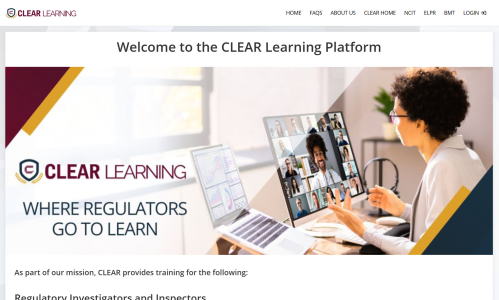
Use the menu bar at the top of the page to:

  • Learn about CLEAR.
  • Navigate to the main CLEAR website.
  • Find information about the three learning tracks CLEAR offers.
  • Log in.

This menu is available to you before and after logging into the system.
Use the menu bar at the top of the page to:

  • Learn about CLEAR.
  • Navigate to the main CLEAR website.
  • Find information about the three learning tracks CLEAR offers.
  • Log in.

This menu is available to you before and after logging into the system.

The Dashboard


Upon login, you will be directed to your dashboard. The dashboard is where you can access:

  • All assigned courses
  • Your progress tracker to keep track of your work
  • A calendar of your assigned live virtual sessions and in-person training programs

Upon login, you will be directed to your dashboard. The dashboard is where you can access:

  • All assigned courses
  • Your progress tracker to keep track of your work
  • A calendar of your assigned live virtual sessions and in-person training programs

The Course Homepage


From the course homepage, you will be able to:
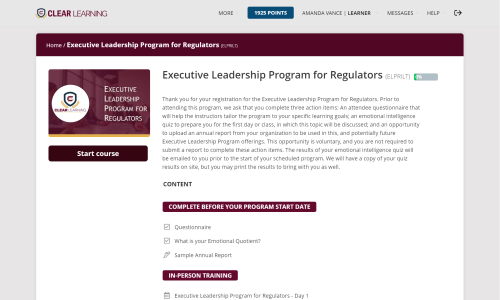
  • Complete course content
  • Download the Participant Guide
  • Access live sessions/IPT events for your course
  • Review the completion rules for the course
  • Download your certificate upon completion of all required content

From the course homepage, you will be able to:
  • Complete course content
  • Download the Participant Guide
  • Access live sessions/IPT events for your course
  • Review the completion rules for the course
  • Download your certificate upon completion of all required content

The Progress Menu


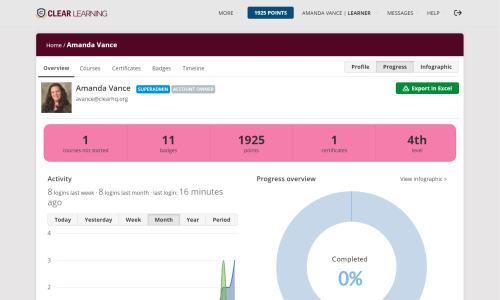
The Progress menu contains several sub-tabs that allow you to:

  • View your progress through all assigned courses.
  • View and access your assigned courses from the Courses tab.
  • Download certificates earned by completing courses.
  • View your Gamification Badges.
  • See your timeline of events.
  • Review and update your profile.

The Progress menu contains several sub-tabs that allow you to:

  • View your progress through all assigned courses.
  • View and access your assigned courses from the Courses tab.
  • Download certificates earned by completing courses.
  • View your Gamification Badges.
  • See your timeline of events.
  • Review and update your profile.

The Calendar


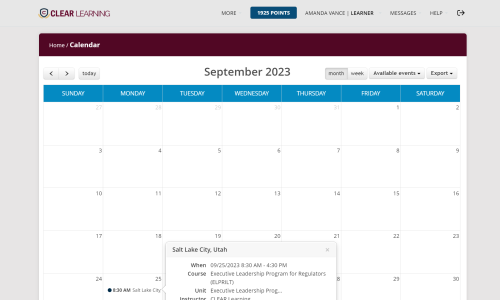
Finally, the Calendar menu on your Dashboard allows you to see all of your events. for virtual trainings, these are the live sessions that you will need to attend via Zoom to complete your coursework.

To join a zoom call, you will click on the event and click the button provided to join the call. 

You can access this link from the Calendar, and within your course homepage by navigating to the appropriate session listed in your course modules.

For In-Person Training events, the dates, times, and conference room information will be provided in the event.

Finally, the Calendar menu on your Dashboard allows you to see all of your events. for virtual trainings, these are the live sessions that you will need to attend via Zoom to complete your coursework.

To join a zoom call, you will click on the event and click the button provided to join the call. 

You can access this link from the Calendar, and within your course homepage by navigating to the appropriate session listed in your course modules.

For In-Person Training events, the dates, times, and conference room information will be provided in the event.